Spectra Intelligence App for Splunk SOAR Installation Guide
Overview
This guide will describe the process of installing and configuring the ReversingLabs Spectra Intelligence app for Splunk SOAR.
Prerequisites
Before you begin, ensure you have:
- A Splunk SOAR on-prem or Splunk SOAR Cloud instance versions 6.3, 6.2, or 6.1
- Administrator access to your Splunk environment
- A valid splunk.com username and password
- A valid ReversingLabs Spectra Intelligence username and password
Installation Steps
- Log in to your Splunk SOAR instance as an administrator
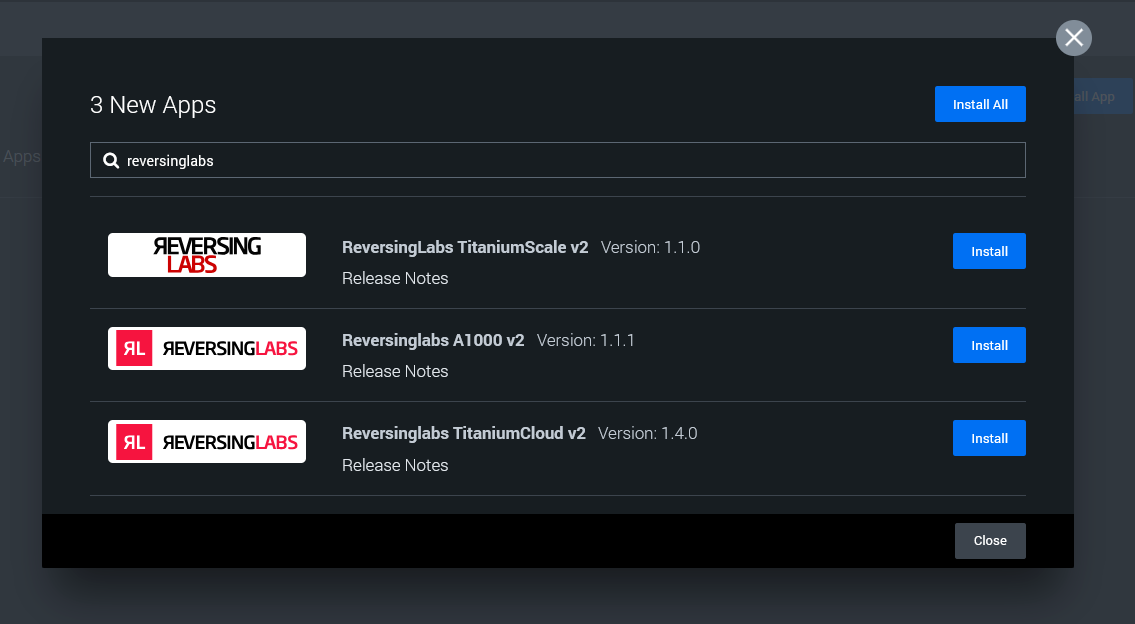
- Navigate to "Apps"
- Click "New Apps"
- Enter "ReversingLabs" in the search box
- Click "Install" next to "ReversingLabs TitaniumCloud v2"
Configuration Steps
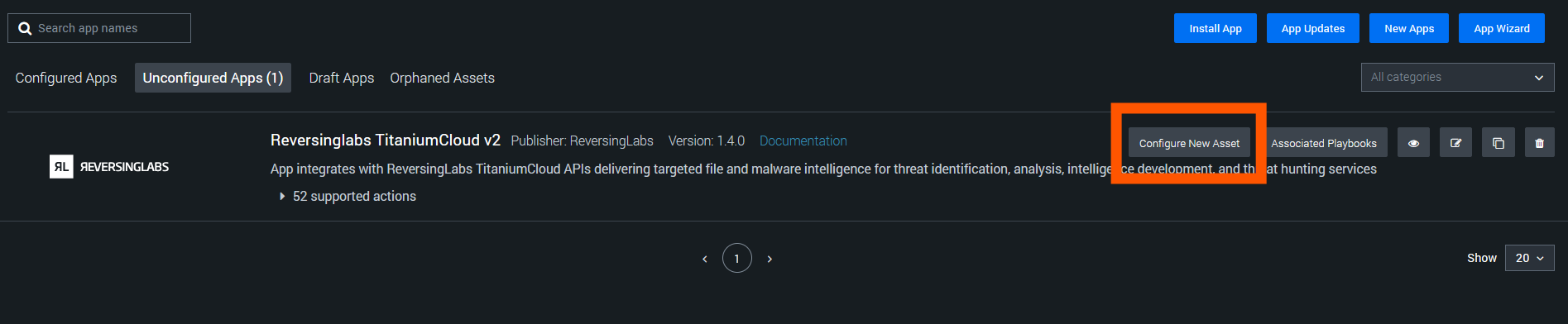
- Navigate to the "Unconfigured Apps" section
- Click "Configure New Asset"
- Enter a custom name for the asset
- Click "Asset Settings"
- Enter the "https://data.reversinglabs.com" in the "TitaniumCloud URL" field
- Enter a valid Spectra Intelligence username and password in the associated fields
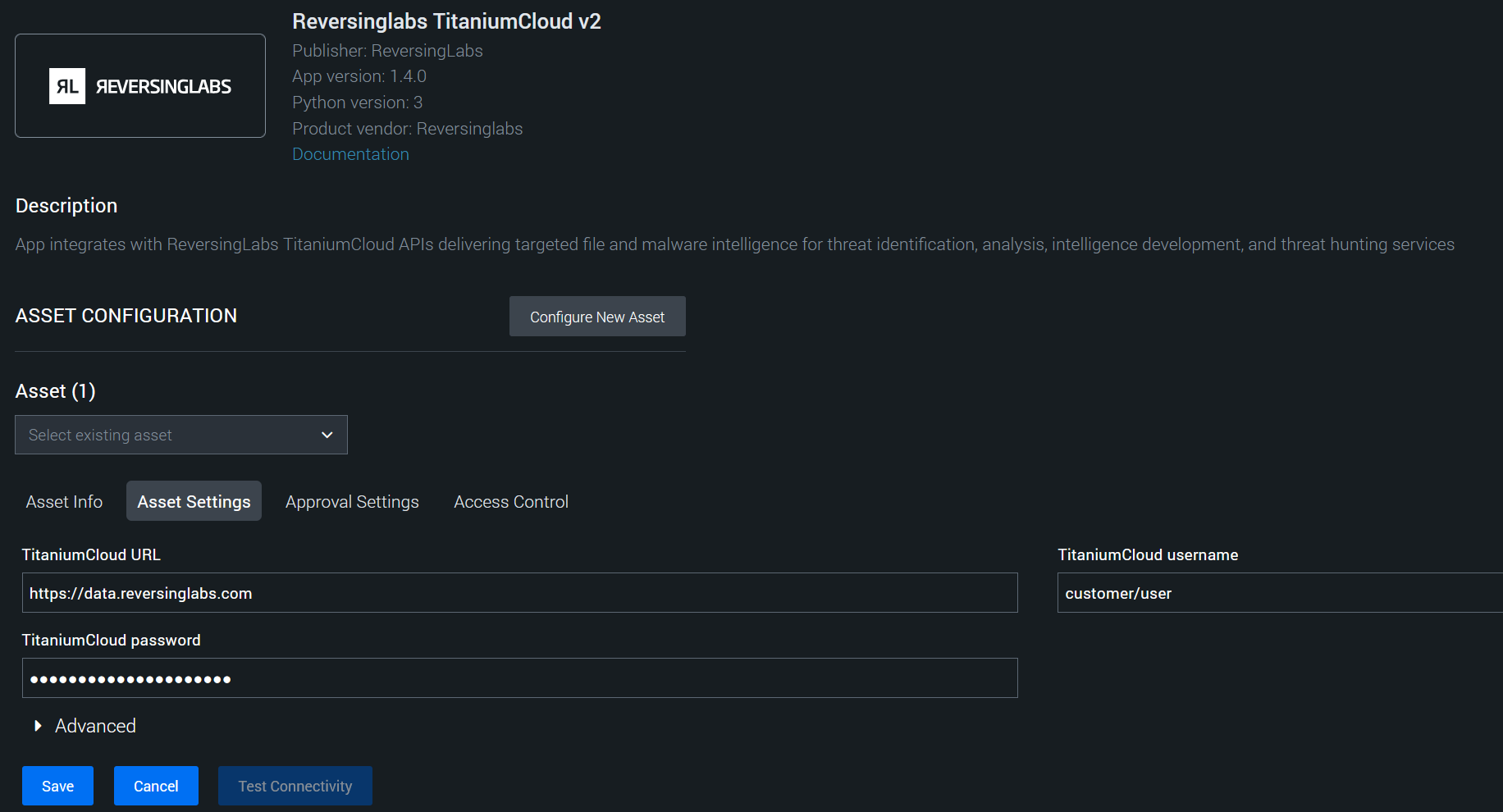
- Click the "Save" button"
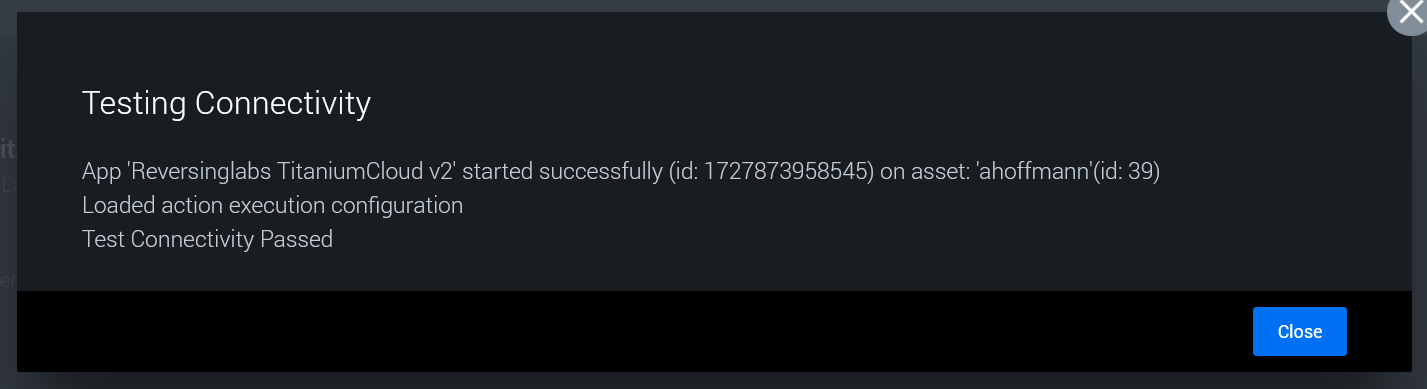
- Click the "Test Connectivity" button to validate the settings
Associated Playbooks
Two playbooks have been published to the Splunk SOAR community repository with this app, which are designed to help provide examples of using the actions provided by the ReversingLabs Spectra Intelligence app for Splunk SOAR.
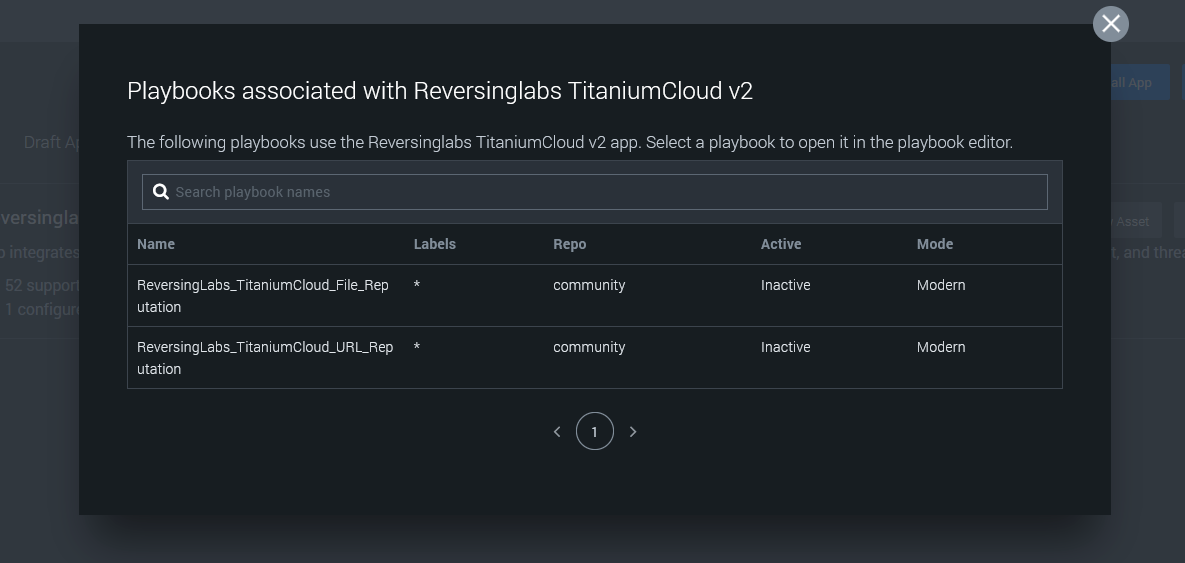
To use these playbooks, actions within the playbook need to point to the correct asset created in the earlier sections of this document. Click the playbook to open the editor, which will indicate a missing configuration. Click "View" to begin updating the playbook:

Select the asset created earlier from the dropdown menu, then click "save":
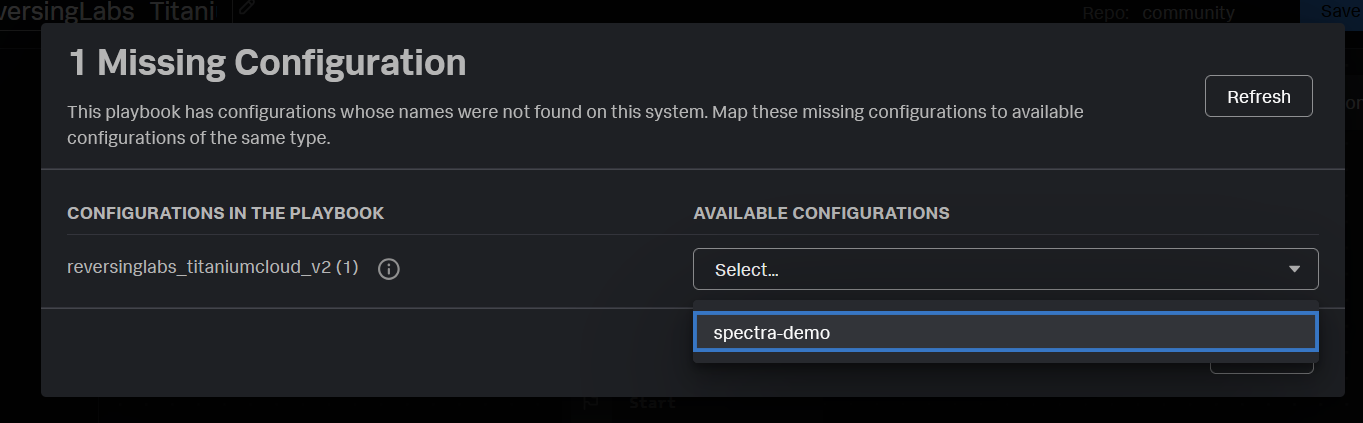
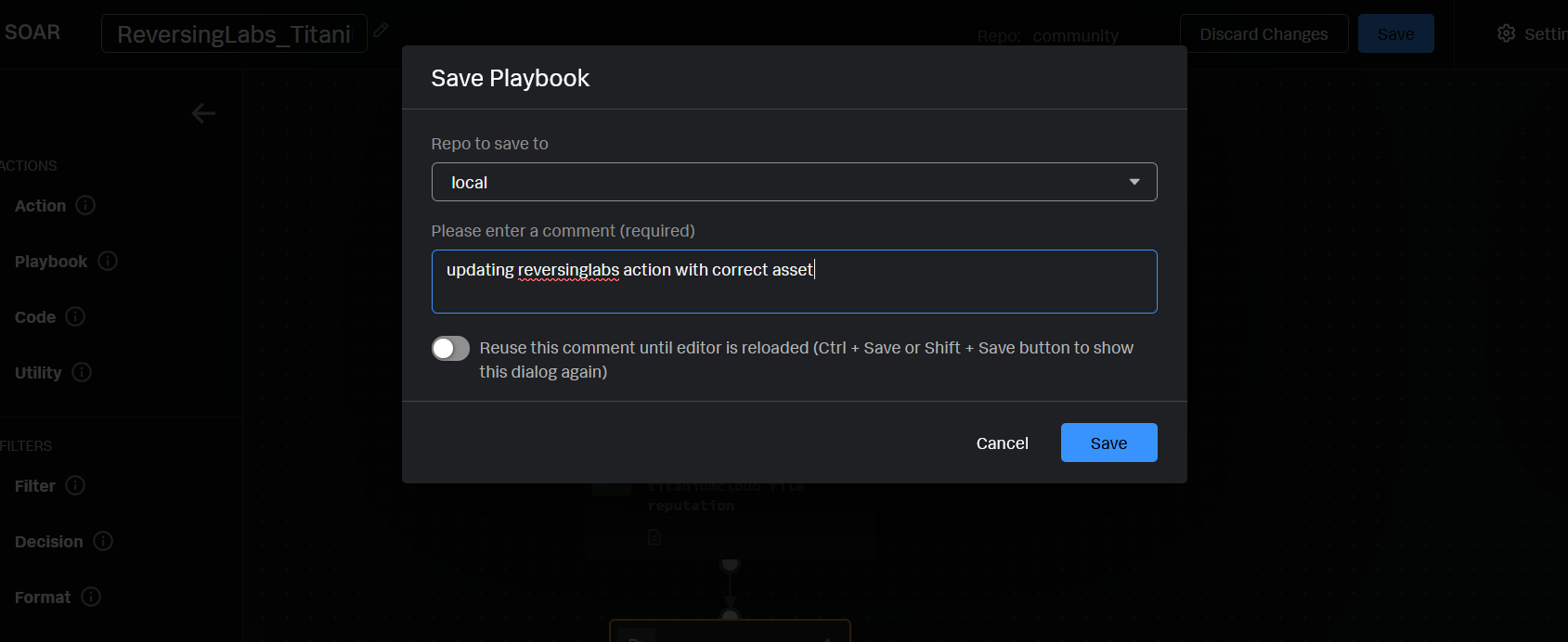
Click the "Save" button again, then enter a comment to save the updated playbook to the local repository: